Minecraft continues to be one of the most popular games in the world. Players can build houses, explore caves, fight monsters, and create almost anything they imagine. On Android devices, the game is officially called Minecraft: Bedrock Edition. This version is designed for phones and tablets, while still offering the same core features found on consoles and Windows PCs.
Because mobile gaming has improved a lot in recent years, Minecraft on Android now runs smoother and supports larger worlds, better graphics, and cross-platform multiplayer. In addition, regular updates keep the game fresh with new mobs, blocks, and gameplay features.
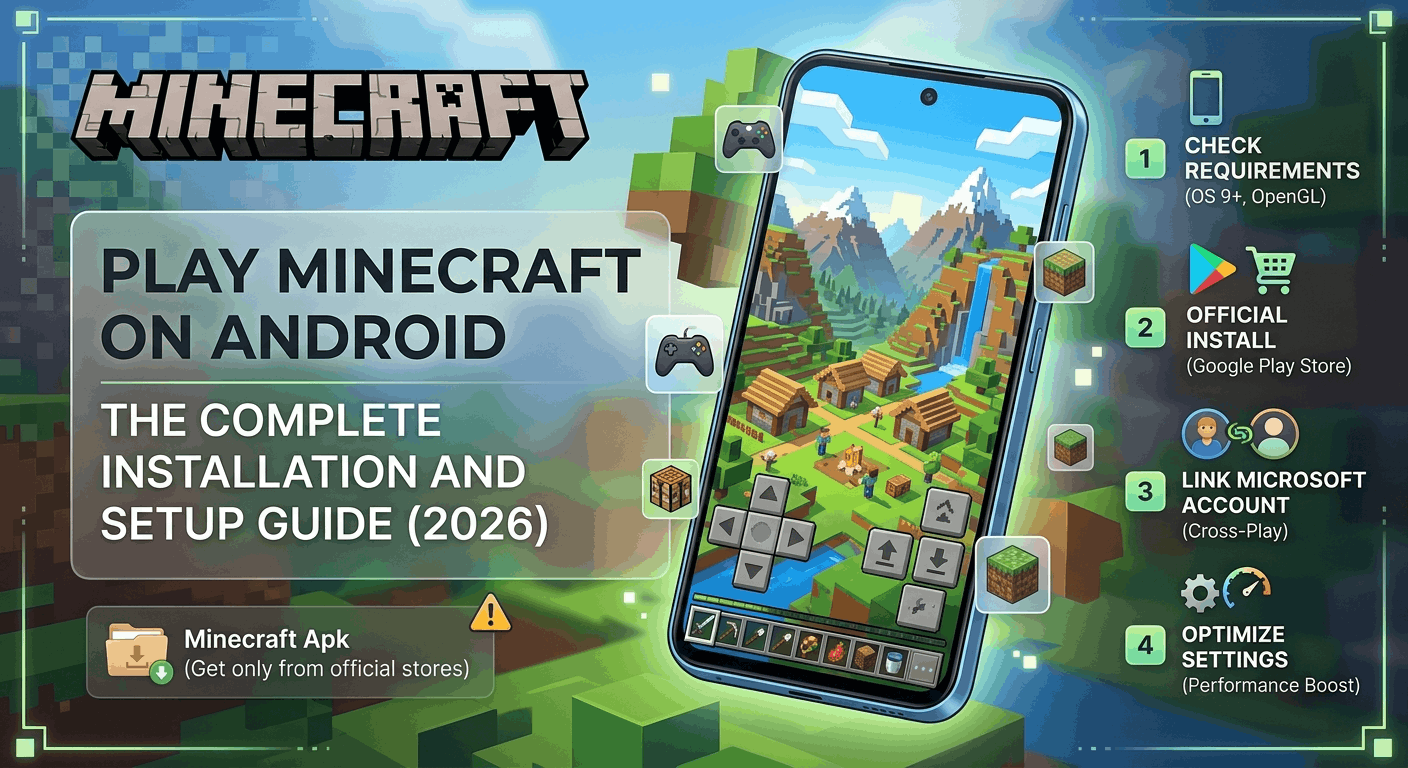
System Requirements and Device Compatibility
Before downloading the game, it is important to check whether the Android device can run the latest version properly. Minecraft has become more advanced over time, so older devices may struggle with performance or may not support the newest updates.
Operating System
Minecraft for Android requires Android 9 or higher. Devices running older versions may not receive support, security updates, or stable gameplay performance.
RAM and Performance
At least 2GB of RAM is recommended for basic gameplay. However, devices with 4GB RAM or more usually provide a smoother experience, especially when using shaders, texture packs, or multiplayer servers.
Storage Space
The game itself needs around 1GB of free storage space. Still, extra storage is important because saved worlds, screenshots, downloadable maps, and Marketplace content can quickly use additional space.
Graphics Support
The device must support OpenGL ES 3.1 or higher. Modern Android phones usually support this requirement without problems. However, very old budget phones may experience crashes or graphic issues.
How to Install Minecraft on Android
The official Google Play Store remains the safest way to download Minecraft. Using the official version helps players receive automatic updates, bug fixes, and access to official online services.
Step 1: Open the Google Play Store
Launch the Play Store app and type “Minecraft” into the search bar. The official game is published by Mojang.
Step 2: Purchase and Download
Minecraft is a paid game. After completing the one-time purchase, the Install button becomes available. The game then downloads and installs automatically.
Step 3: Allow Permissions
When opening the game for the first time, Android may ask for permissions such as storage access and microphone access. Storage access allows the game to save worlds and settings. Meanwhile, microphone access may help during multiplayer voice communication.
Minecraft Apk and Third-Party Downloads
Many players search online for a Minecraft Apk instead of downloading the game from the Play Store. Although this may seem easier for some users, unofficial files often create serious problems.
Third-party versions may contain malware, outdated game files, or broken multiplayer features. In many cases, unofficial versions cannot connect to official servers or receive future updates. Because of this, official installation methods remain the safest and most stable option.
Understanding the Mobile Controls
New players sometimes struggle with mobile controls during the first few hours of gameplay. Fortunately, Minecraft on Android offers several control options that can improve comfort and movement.
Touch Controls
The default setup uses on-screen touch controls. Players can move using a virtual joystick while tapping buttons for jumping, mining, placing blocks, and attacking enemies.
Inside the settings menu, players can adjust:
- Button size
- Sensitivity
- Camera movement
- Touch layout
- Split controls
These options help improve comfort for different screen sizes and hand positions.
Bluetooth Controllers
Minecraft Android also supports external controllers. Many players prefer controllers because they offer more accurate movement and easier combat controls.
Supported controllers include:
- Xbox controllers
- PlayStation controllers
- Backbone controllers
- Razer Kishi controllers
Most modern controllers connect through Bluetooth and work automatically without difficult setup steps.
Multiplayer and Cross-Platform Features
One of Minecraft’s biggest strengths is multiplayer gaming. Since Android uses the Bedrock Edition engine, players can connect with friends across many different platforms.
Supported platforms include:
- Xbox
- PlayStation
- Nintendo Switch
- Windows PC
- Mobile devices
This cross-platform support allows friends to play together even when using different systems.
Signing In With a Microsoft Account
A Microsoft Account is required for most online features. After signing in, players can access multiplayer content and save online progress more easily.
With a Microsoft Account, players can:
- Add friends using Gamertags
- Join multiplayer worlds
- Access featured servers
- Use Realms
- Sync purchases and skins
The sign-in process only takes a few minutes and greatly improves the online experience.
Joining Realms and Servers
Minecraft Realms
Realms are private online worlds hosted by Mojang. Players can stay connected even when the world owner is offline. This makes Realms useful for long-term survival worlds with friends.
Public Servers
Minecraft Android also supports large public servers. These servers include mini-games, PvP battles, survival worlds, parkour maps, and custom events.
Popular server types often include:
- SkyWars
- BedWars
- Survival multiplayer
- Hide and Seek
- Capture the Flag
A stable internet connection helps reduce lag during online gameplay.
Tips to Improve Minecraft Performance on Android
Some devices may experience lag, frame drops, overheating, or slow loading times. Thankfully, several settings can improve overall performance.
Lower the Render Distance
Render Distance controls how much of the world loads at once. Lowering this setting reduces pressure on the processor and improves FPS significantly.
This is usually the most effective performance adjustment.
Disable Fancy Graphics
Turning off visual effects can help weaker devices run the game more smoothly.
Helpful settings to reduce include:
- Fancy Graphics
- Smooth Lighting
- Beautiful Skies
- Fancy Leaves
- Particle Effects
Although graphics quality may decrease slightly, gameplay usually becomes much smoother.
Close Background Applications
Before launching Minecraft, closing social media apps, video streaming apps, and unused background programs can free up RAM and improve stability.
This simple step often reduces lag spikes during gameplay.
Keep the Game Updated
New updates often improve optimization and fix bugs. Therefore, keeping Minecraft updated helps maintain better performance and compatibility.
Final Thoughts
Minecraft on Android delivers the full sandbox gaming experience directly on mobile devices. Players can build massive structures, explore endless worlds, and join friends across different platforms from almost anywhere.
By using official installation methods, checking device compatibility, and adjusting graphics settings properly, players can enjoy smoother gameplay and better stability. In addition, connecting a Microsoft Account unlocks multiplayer features, Realms access, and cross-platform support.
With the right setup, Minecraft on Android can provide countless hours of creative building, survival adventures, and online multiplayer fun.